 Vault
VaultVault is a native Mac app for a local encrypted file library. Your Mac vault is independent of any iPhone vault, and you choose each export, backup or encrypted package that leaves it.
- Import
- File picker or drag and drop
- Folders
- Inside Vault’s own library
- Finder watching
- Not included
- Automatic sync
- Not included
Set up your Mac vault
Choose Set up Vault
Read Keep a separate copy, acknowledge the recovery responsibility and click Create my vault.
Choose optional authentication
Open About your vault and enable Require authentication to open Vault if you want a Touch ID or Mac-password check. New vaults start with this option off.
Import and browse
Bring in regular files
Click Import files and select files in the system panel, or drag regular files into the library window.
Keep the originals until checked
Vault creates encrypted local copies and leaves the originals where they were. Finder folders, app packages and document packages are not imported as files.
Use the sidebar and search
Browse categories and folders, or search names across the library. Changing an original in another app does not update the already imported copy.
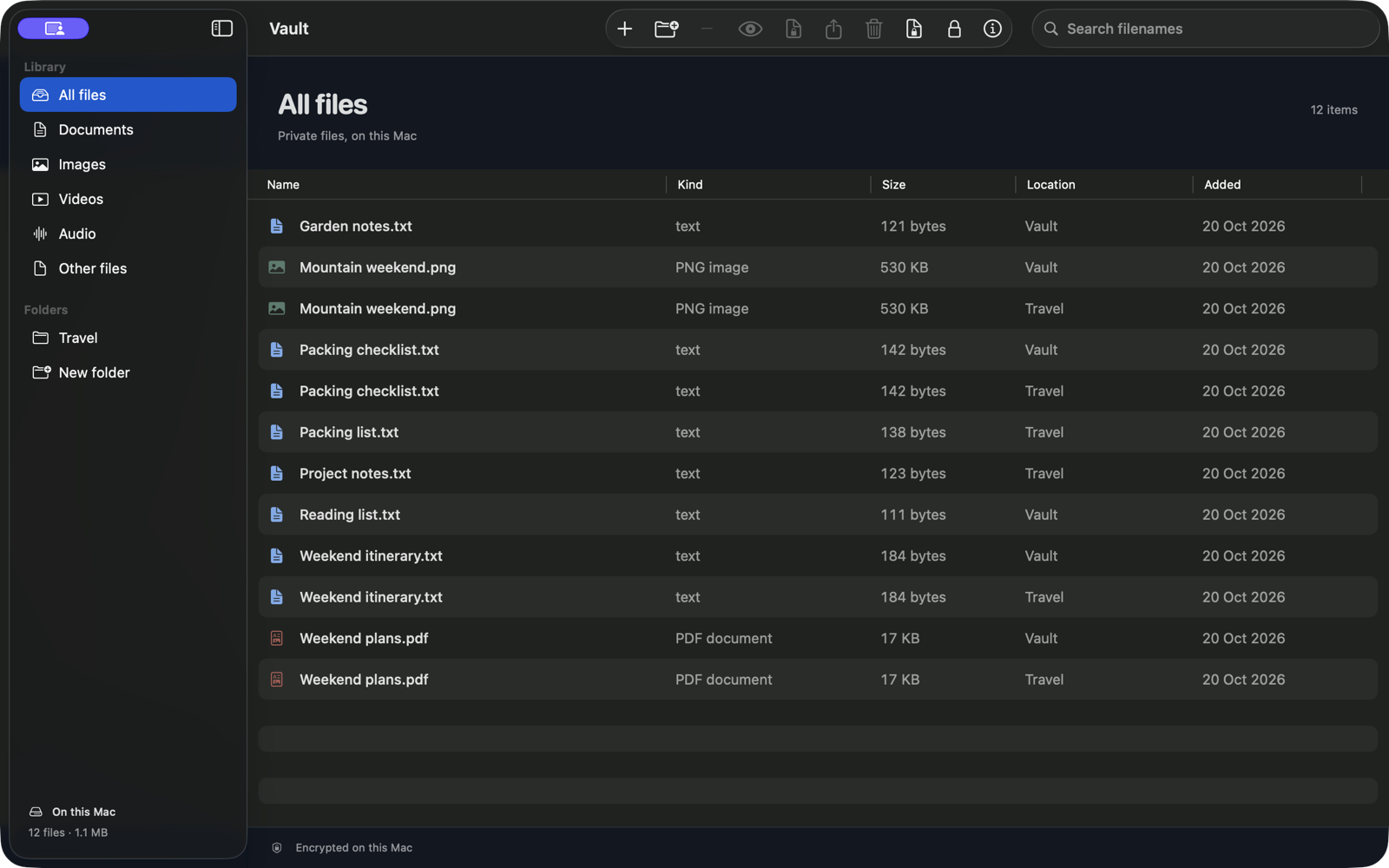
Preview, rename and export
Select a file and choose Preview. Some regular files can be stored and later exported even when macOS cannot preview them. Export a copy creates an ordinary unencrypted file through the system save panel. Check the selected destination before replacing an existing file.
Understand the Mac privacy cover
Vault conceals its window when another app becomes active. Switching apps alone does not discard the unlocked library key. Use Lock Vault or Close Vault when finished; the app also locks on session changes or sleep.
This is not screenshot prevention. The privacy cover reduces incidental exposure and does not replace FileVault’s whole-volume protection.
Back up or share deliberately
Open About your vault → Encrypted backup… to create a checked snapshot. For a supported individual file, Share encrypted copy creates a code-protected package. Neither connects the iPhone and Mac libraries for ongoing synchronization.
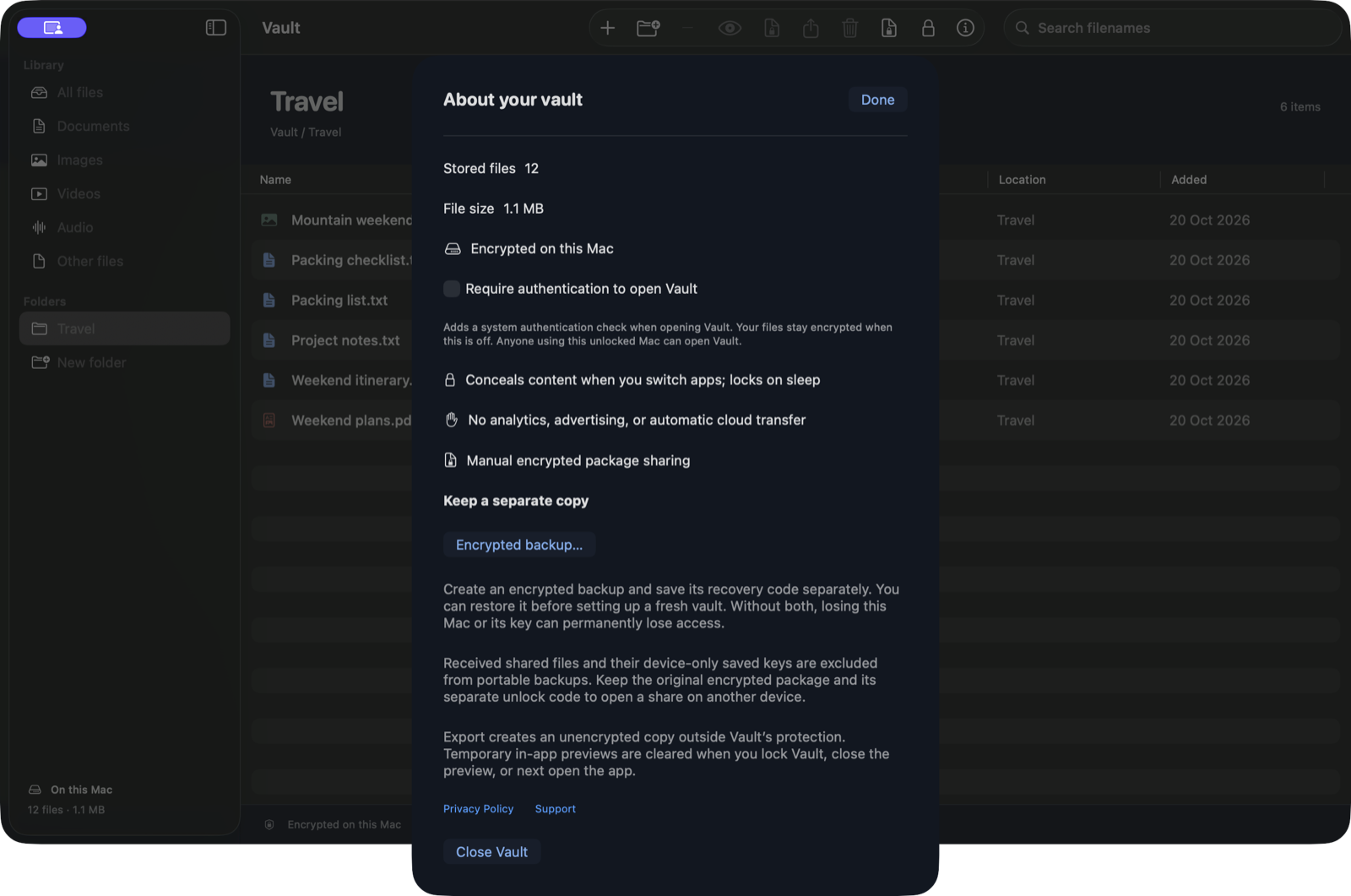
If something does not work
- Select regular files rather than Finder folders, packages or links.
- Use filename search if a file is not in the expected category.
- If preview is unavailable, retain the file or export a copy to a suitable app.
- If a save fails, keep the source in Vault and choose a writable destination with enough space.
- A missing key requires the earlier backup-and-code recovery route; do not delete your only copy.