 Vault
VaultYes. Disk Utility can put a folder’s contents into an encrypted disk image that opens with a password. It is included with macOS and may be all you need.
Create an encrypted image from a folder
Open Disk Utility
Choose File → New Image → Image from Folder.
Select the folder
Choose the source folder, then choose a name and destination for the image.
Choose encryption and a password
Under Encryption, select an available option and set a password you can recover. Under Image Format, choose a writable option if you need to change the contents. Labels vary by macOS version; Apple’s current guide lists RAW Image among writable formats.
Save and test the image
Open it in Finder, check the files and eject the mounted image when finished.
The original folder remains a separate copy. An open mounted image exposes its files to someone using your session. Apple’s Disk Utility guide.
Make the first test harmless
Use a folder with one non-sensitive document. Open the image, check the document, eject it and open it again. Verify the password and open/eject habit before moving important material. Keep a separate backup and verify it before removing source files.
Also check FileVault
FileVault protects access to startup-disk data. It is relevant to a lost or stolen Mac, while an encrypted image is a selected-file container you can close independently. Find FileVault under System Settings → Privacy & Security → FileVault and preserve the recovery method you choose. Apple’s FileVault guide.
| Method | Protects | Everyday action | iPhone use |
|---|---|---|---|
| FileVault | Mac startup-disk data | Sign in to the Mac | No |
| Encrypted disk image | Selected Mac container | Open with password; eject when done | Not a native iPhone folder workflow |
| Vault | Files imported into its local library | Browse app; optionally authenticate | Separate iPhone app and independent library |
Where Vault fits
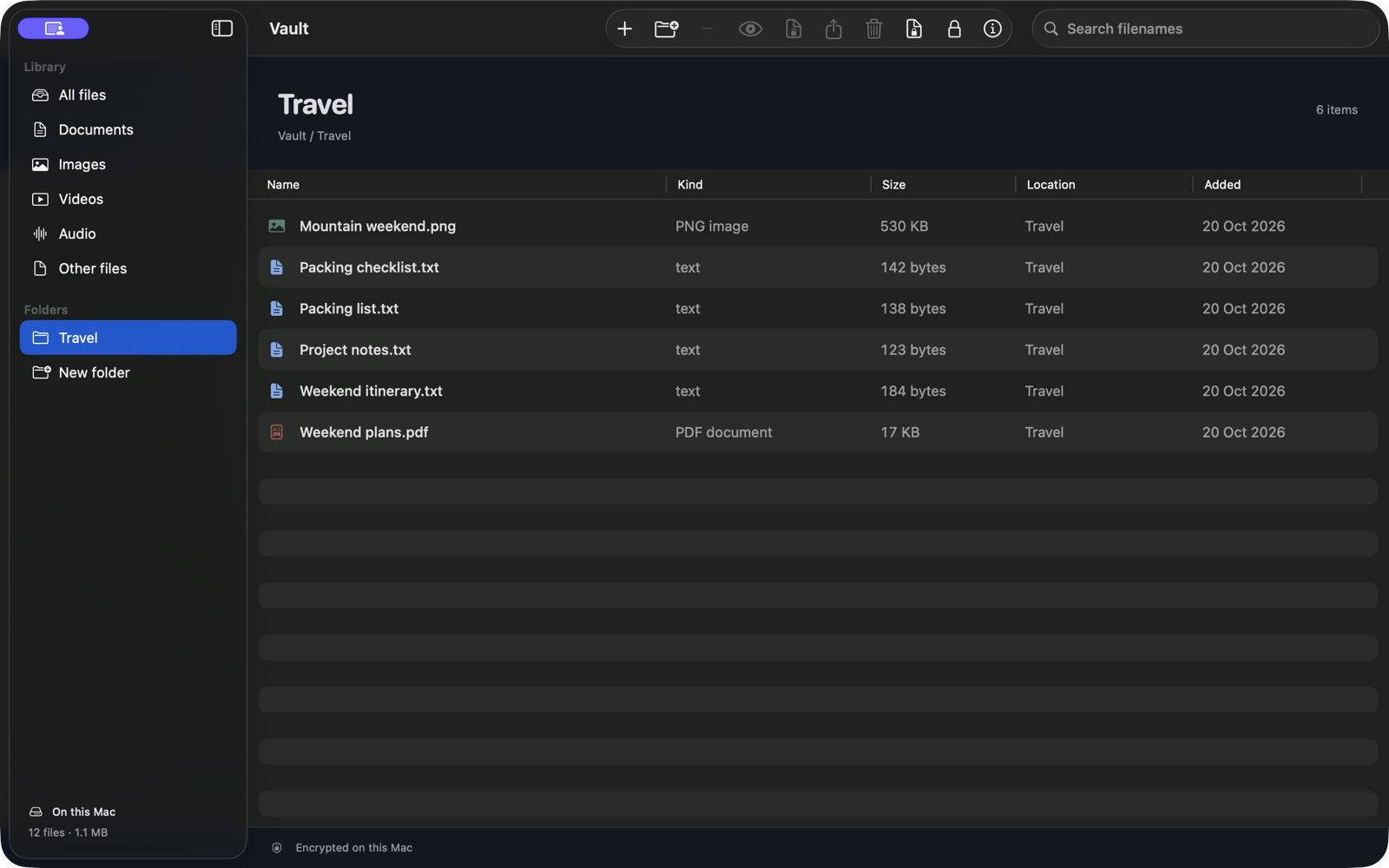
Vault is useful if you prefer a dedicated native library with virtual folders, filename search and supported previews. It imports regular file copies; it does not attach a password to the original Finder folder or monitor it for changes. Version 1.0 is coming soon.
- Create folders inside Vault.
- Import or drag in the regular files you want.
- Enable Require authentication to open Vault in About your vault if desired. It starts off for a new vault.
- Create a portable encrypted backup and save its code separately.
Before removing the original folder
- Open the protected copy and check representative files.
- Close or eject it, then confirm you can reopen it.
- Verify a separate recovery copy.
- Confirm you have retained the password or recovery code.
- Remember that ordinary deletion is not proof every historical or cloud copy has been erased.