 Vault
VaultKeep documents, photos, videos and other regular files together in an encrypted library stored on your iPhone. Vault works locally without an account or automatic cloud transfer.
- Original files
- Remain at their source
- Filename search
- Across Vault folders
- Automatic sync
- Not included
- Extra app authentication
- Optional; off for a new vault
Set up your local vault
Choose Set up Vault
Open Vault, read Keep a separate copy and acknowledge that there is no account reset or automatic backup.
Create the vault
Tap Create my vault. On a physical iPhone, the local device key requires a device passcode.
Choose whether to add another check
A new vault starts with extra app authentication off. Turn on Settings → Require authentication to open Vault to add Face ID, Touch ID or passcode authentication. Files remain encrypted in either setting.
Import from Files or Photos
Tap Import files
Choose Choose files for documents and downloads or Choose photos for photos and videos.
Select ordinary files
Vault creates encrypted copies in the current folder and leaves the originals in Files, Photos or the source app. Directories, filesystem packages and symbolic links are not supported.
Check the imported copy
Open a supported file before changing any original. Keep important originals until you have saved and checked a recovery backup.
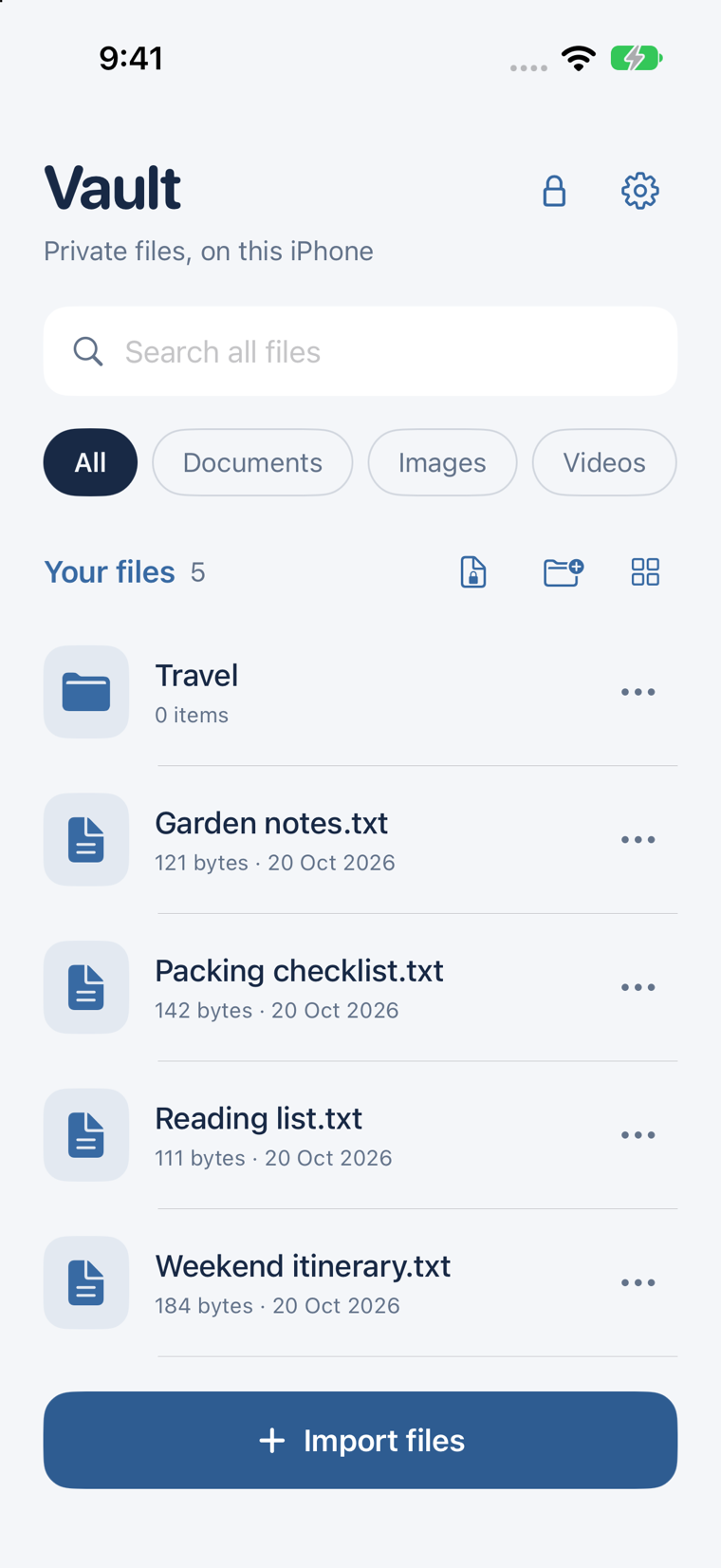
Find and organize files
Use Search all files, the file-type filters, the folder button and the layout button. Each item’s visible … menu offers Rename and Delete; files also offer Preview, Export a copy and Share encrypted copy.
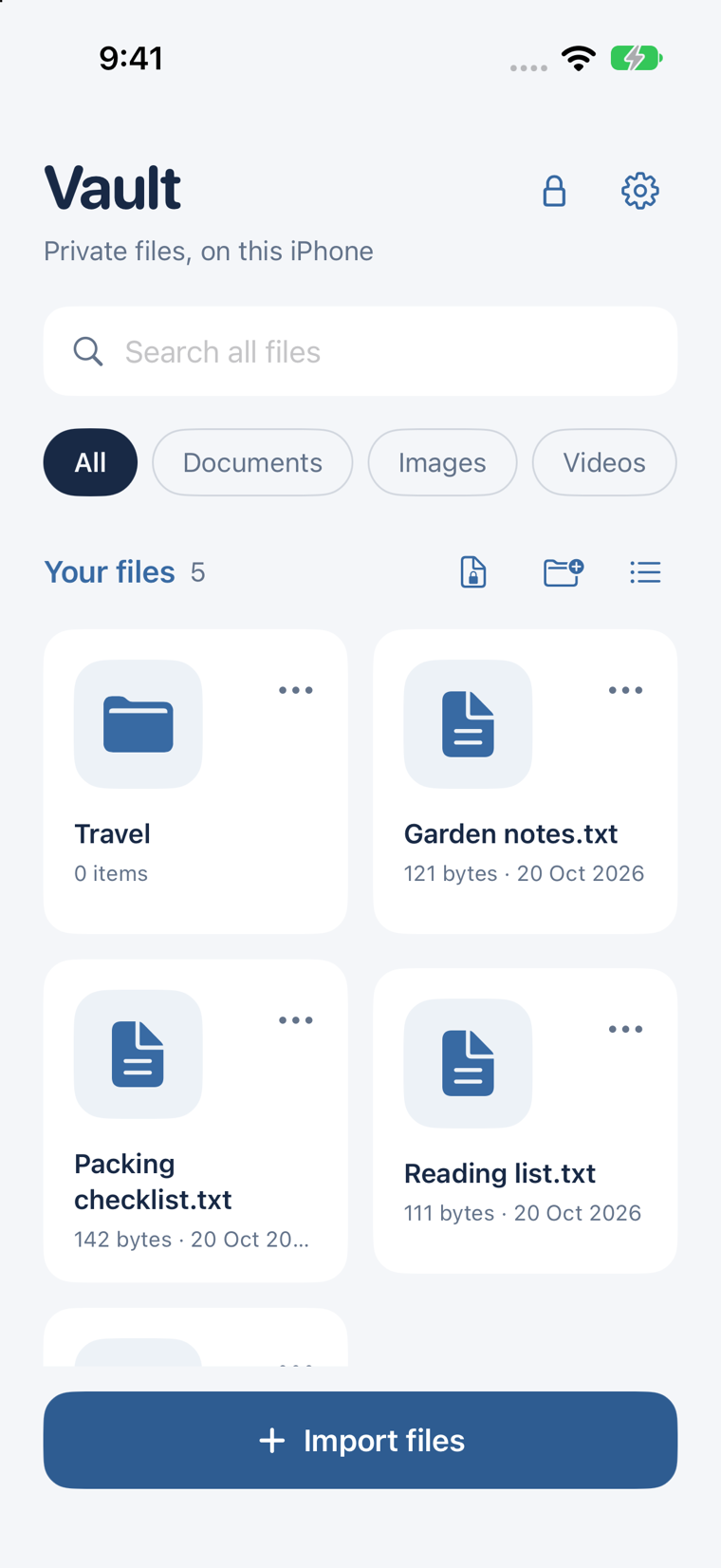
Choose how a copy leaves Vault
Export a copy creates an ordinary unencrypted file in the destination you choose. Share encrypted copy… prepares a supported file as a .vaultshare package with a separate random code. Follow the encrypted-sharing walkthrough before sending an important file.
Close Vault and plan for recovery
The app covers its interface while inactive and closes the open library when it enters the background. Open Settings → Encrypted backup to create a snapshot, save it outside the iPhone and keep its recovery code separately.
A backup on the same lost phone cannot recover the phone. Save the file elsewhere and use Check a saved backup to verify the destination copy.
If something does not work
- Clear search and filters if a file appears missing.
- If a file stores but will not preview, export an ordinary copy to a suitable app.
- If a provider file is not local yet, download it through the provider and try again.
- A missing device key is a recovery problem, not a forgotten Vault password. Preserve existing files and use an earlier backup plus its code on a fresh vault.