 Vault
VaultA saved encrypted backup and its separate recovery code can recover the files in that snapshot if the source device or key is lost. There is no automatic cloud backup or account reset.
- Backup type
- Manual encrypted snapshot
- Later changes
- Require a new snapshot
- Recovery code
- Unique to each backup
- Received files
- Excluded
Before you start
Choose somewhere outside the source device for the encrypted backup, and a separate safe place for its code. Anyone with both can recover the saved files. Keep important originals until you have checked the destination copy. Finish other file operations and make sure the source and destination have enough free space.
Separate the two pieces. A backup stored only on a lost device is not a recovery copy. A recovery code copied to the clipboard has not been stored safely.
Create and save an encrypted backup
Open Encrypted backup
On iPhone, go to Settings → Encrypted backup. On Mac, go to About your vault → Encrypted backup….
Prepare the backup
Choose Prepare an encrypted backup. Vault displays a newly generated recovery code.
Store the complete code separately
Save the full code somewhere separate from the future
.vaultbackupfile. Then turn on I saved this code separately from my backup and enter its last six characters in the confirmation field.Create and verify the snapshot
Choose 2. Create and verify backup. Keep Vault open while it checks every saved file. Wait for Backup verified.
Save the verified file
Choose 3. Save encrypted backup… and select a destination that remains available if the source device is lost. Creating the temporary snapshot is not the same as completing this save.
Check the file you actually saved
Choose the destination copy
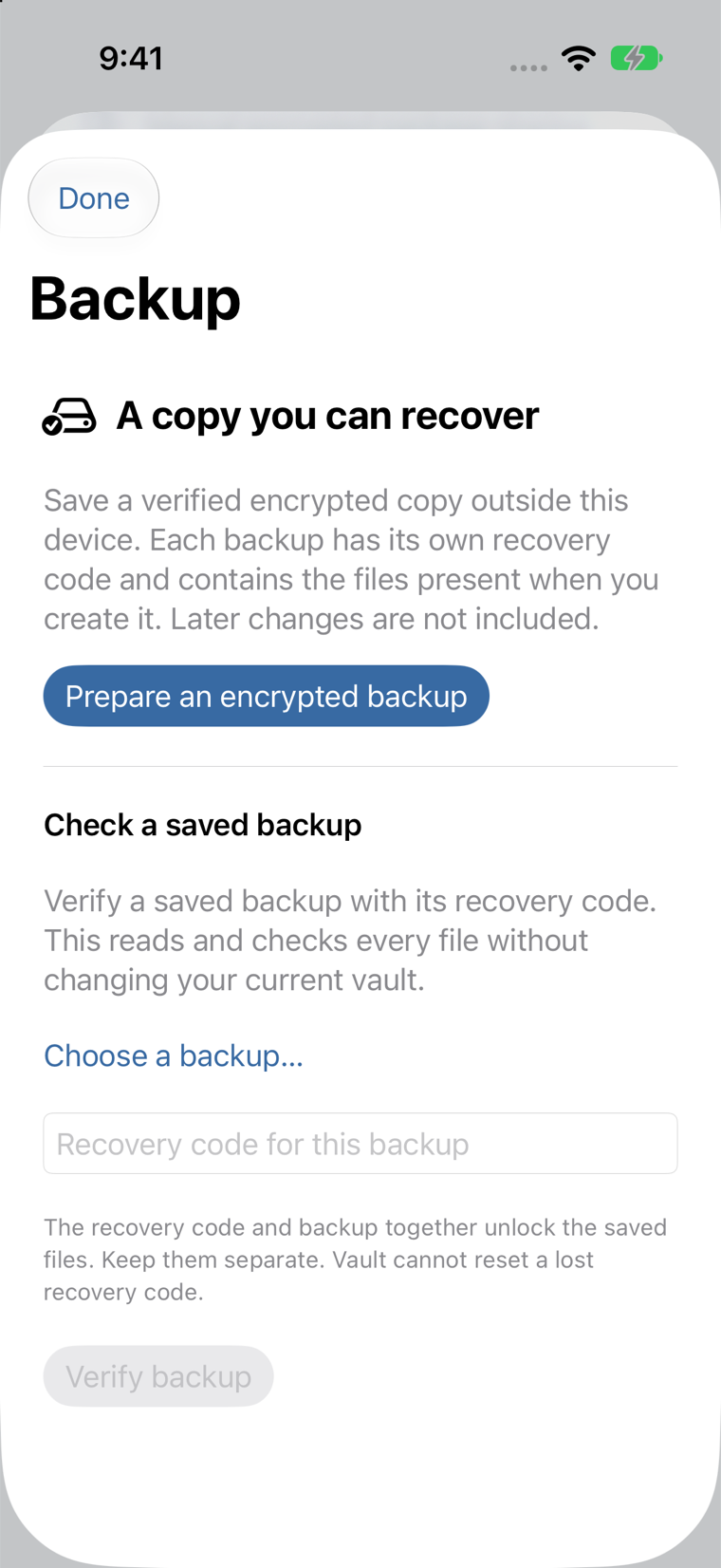
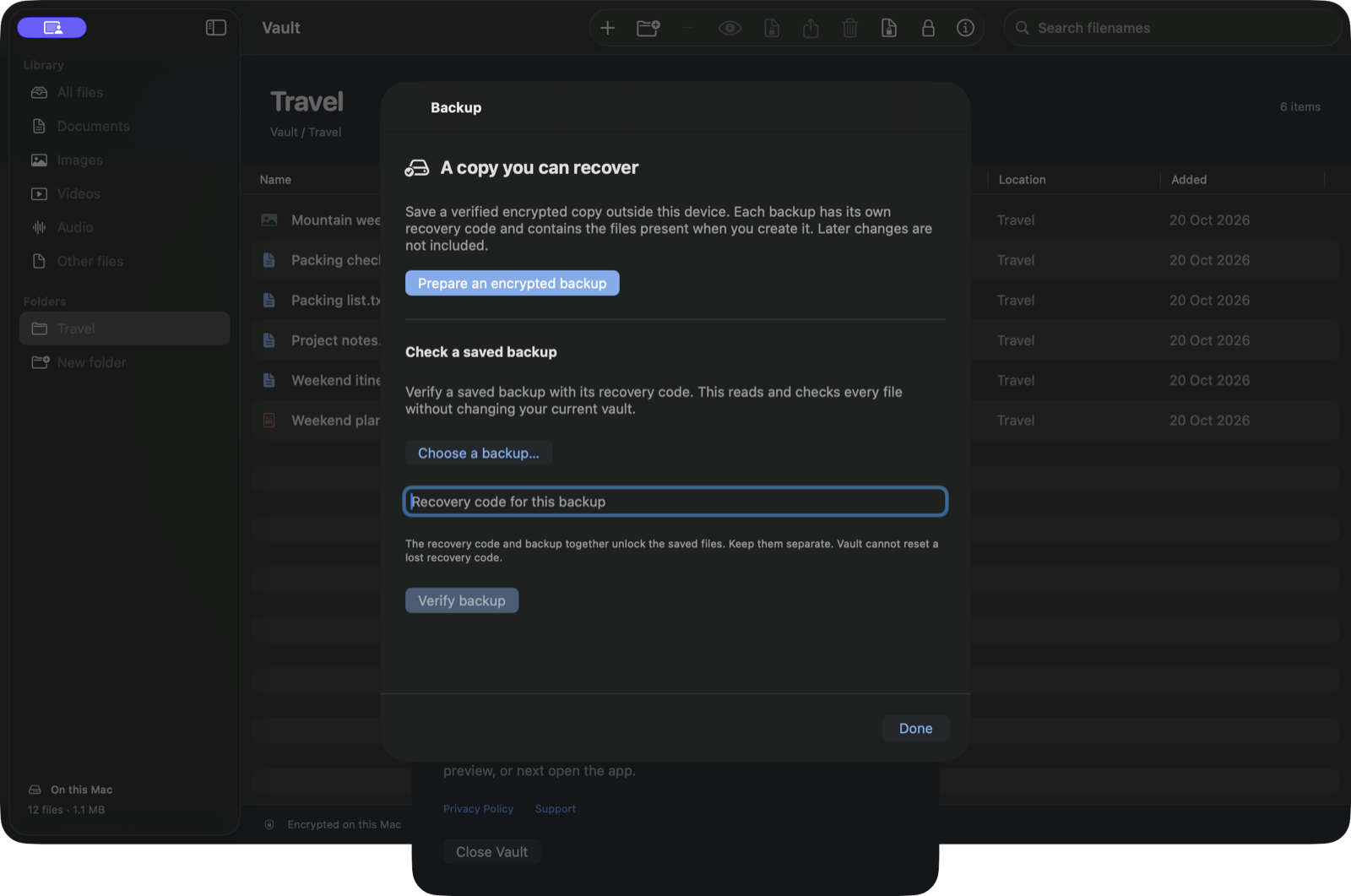
Under Check a saved backup, choose Choose a backup… and select the file from its saved destination.
Enter its complete recovery code
Use the full code generated for this exact snapshot, then choose Verify backup.
Read the verification result
Look for Every saved file verified, together with the file count, folder count, size and snapshot date.
Verification reads every saved file without changing the current vault. It helps catch an incomplete destination copy or a code stored for a different snapshot.
Restore into a fresh vault
Restore is available before setting up a vault. It does not merge into or replace an existing vault, including an empty or damaged one.
Choose Restore an encrypted backup
Use the welcome screen on a fresh installation or another device.
Select the backup and enter its full code
Choose the retained
.vaultbackupfile, enter the matching recovery code and select Verify and restore.Let Vault verify and re-encrypt
The snapshot is checked and files are re-encrypted under the destination device’s local key before the new vault is installed.
Check the recovered library
After Restored into a new device-protected vault, open sample files and decide where to keep the next recovery pair.
Do not delete your only vault merely to test restore. Use a fresh installation or another device and keep the backup and code throughout the test.
When backup or restore fails
- Enter the whole recovery code, not only the six-character creation confirmation.
- Verify that the code belongs to the selected snapshot.
- An existing vault cannot be replaced; preserve it and use the fresh-vault route.
- Check free storage and keep provider files downloaded and accessible.
- Vault cannot reset a lost recovery code.
- Received shares are intentionally absent after restore; reopen the original package using its sender’s code.