 Vault
VaultYes. AirDrop encrypts file transfers. Apple documents a connection protected with TLS. It is a good built-in choice when you are comfortable giving the recipient an ordinary usable copy.
What the encryption covers
Bluetooth helps nearby devices discover one another, while a direct transfer uses Apple peer-to-peer Wi-Fi. A shared Wi-Fi router is not required for that local connection. Apple’s AirDrop security documentation.
Modern AirDrop may continue an initiated transfer over the internet after devices leave local range. On iPhone, Settings → General → AirDrop → Use Cellular Data controls cellular continuation. The direct local architecture should not be read as a guarantee that every current transfer stays local throughout. Apple’s current AirDrop user guide.
Send a file with AirDrop
Bring the devices together
Turn on Wi-Fi and Bluetooth. Disconnect Personal Hotspot if active.
Confirm the intended recipient
Open the file’s Share menu, choose AirDrop and select the right person or device. Someone outside your contacts may need Everyone for 10 Minutes.
Complete any code prompt
Apple documents a code step for non-contact transfers when both iPhones use iOS 26.2 or later.
Check the delivered file
Have the recipient accept and open it. Transfers between your own devices signed into the same Apple Account may be accepted automatically.
See Apple’s current AirDrop instructions.
What happens after delivery?
AirDrop’s connection encryption does not attach a new document password, expiry date or revocable permission to the delivered copy. A recipient who can open the file can use its content. For an individual PDF, a password-protected PDF may be enough; Preview on iOS 26 or later provides a Lock action. Apple’s PDF-lock instructions.
When a Vault package helps
Vault can add file-level encryption before AirDrop carries the file. Opening works offline after the recipient has Vault and imports the package.
Prepare Share encrypted copy
Choose a supported file in Vault. Supported content is PNG, JPEG, HEIC, PDF and UTF-8 text within the documented viewing limits.
Save the generated code
Record it separately and acknowledge that before making the package available.
AirDrop the encrypted package
Send the
.vaultsharefile, then communicate its code through another selected channel.Open it in Vault
The recipient selects the package, enters the code and chooses Unlock and remember on this device.
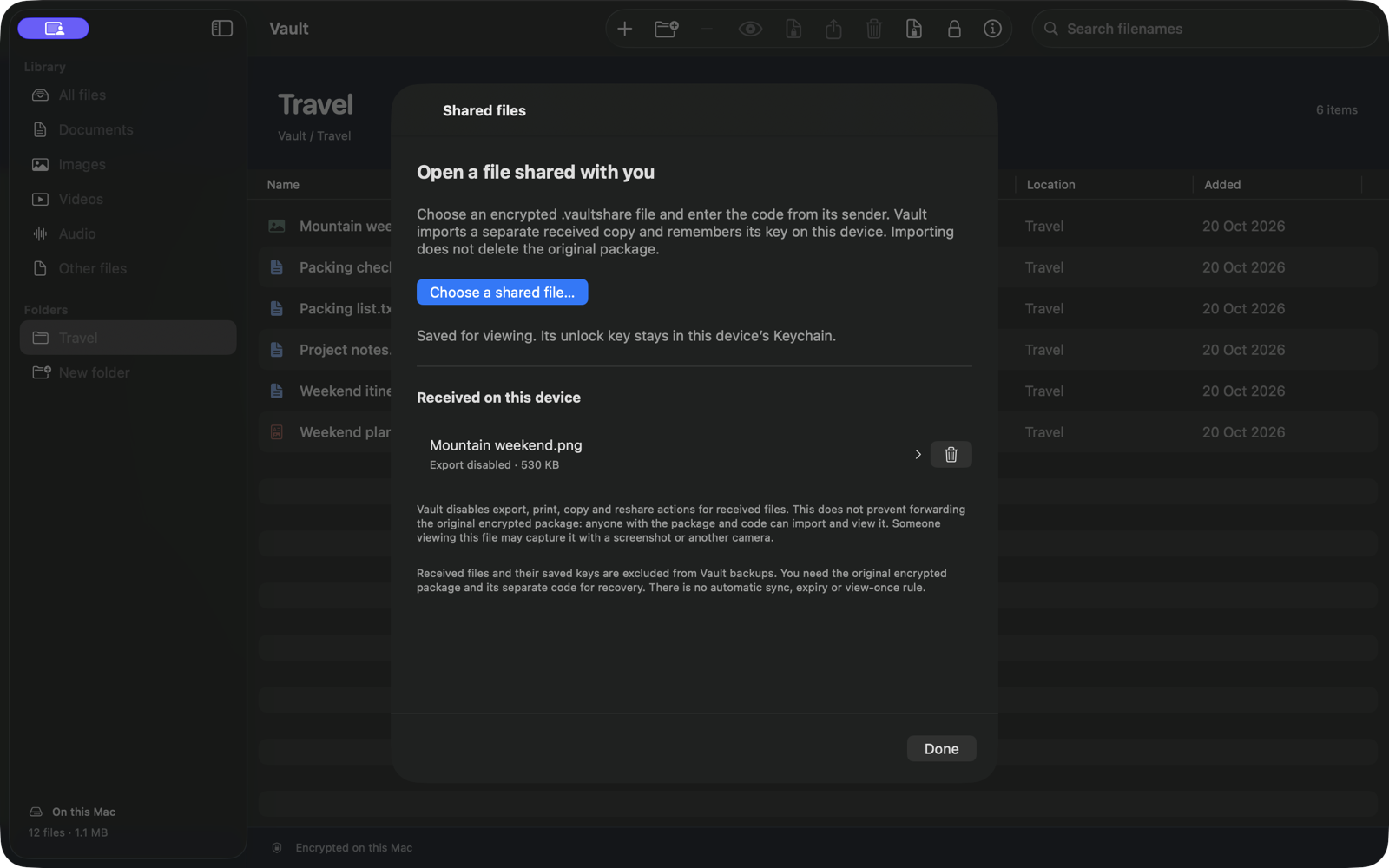
Know the package limits
This is encrypted delivery, not DRM. The external header reveals filename, type and size. The original package can be forwarded, and anyone with package and code can open it elsewhere. Screenshots, another camera and transcription remain possible. There is no expiry, view-once rule or remote revocation.
Received items are excluded from portable Vault backups. Retain the original package and code if recovery matters.
Choose the simplest suitable method
- Use AirDrop alone when the goal is to give someone an ordinary copy.
- Use a document password when the file format and recipient workflow support it.
- Use a Vault package when both sides use Vault and want portable file-level encryption plus a restricted in-app viewer.