 Vault
VaultStart with a strong iPhone passcode, then choose a control that matches the files you have. A built-in Apple option may already be enough.
Secure the phone first
Set a strong device passcode
Open Settings → Face ID & Passcode, or Touch ID & Passcode on a supported model. Under Passcode Options, consider a custom numeric or alphanumeric code.
Choose a suitable Auto-Lock time
Open Settings → Display & Brightness → Auto-Lock. The device passcode enables iPhone Data Protection, but it does not add a separate password to every document.
Apple instructions: set a passcode on iPhone.
Lock an app when needed
On iOS 18 or later, touch and hold a supported app’s Home Screen icon, choose Require Face ID—or the equivalent Touch ID/passcode wording—and confirm. This is useful when lending someone an already unlocked phone. It does not attach a password to files exported from the app, and some built-in apps cannot be locked. Apple’s app-lock guide.
Use the built-in option for one photo, PDF or note
Photos
Open a photo, choose More → Hide and confirm. The Hidden collection is locked by default using Face ID, Touch ID or the device passcode. With iCloud Photos, hiding also applies on connected devices; the photo remains part of the Photos library. Apple’s Hidden collection guide.
PDFs on iOS 26 or later
- Open the PDF in Preview.
- Open the actions menu beside its filename and choose Lock.
- Enable Require Password if shown, enter and verify a password, then choose Done.
- Close and reopen the saved document to check it.
Existing unprotected duplicates remain separate copies. Apple’s PDF-lock instructions.
Notes
A short note can use the device passcode or a custom Notes password, but Notes is not a general file locker. Apple excludes notes containing PDFs, video, audio or other file attachments, and the note title remains visible. Apple’s locked-notes guide.
Use Vault for a mixed-file library
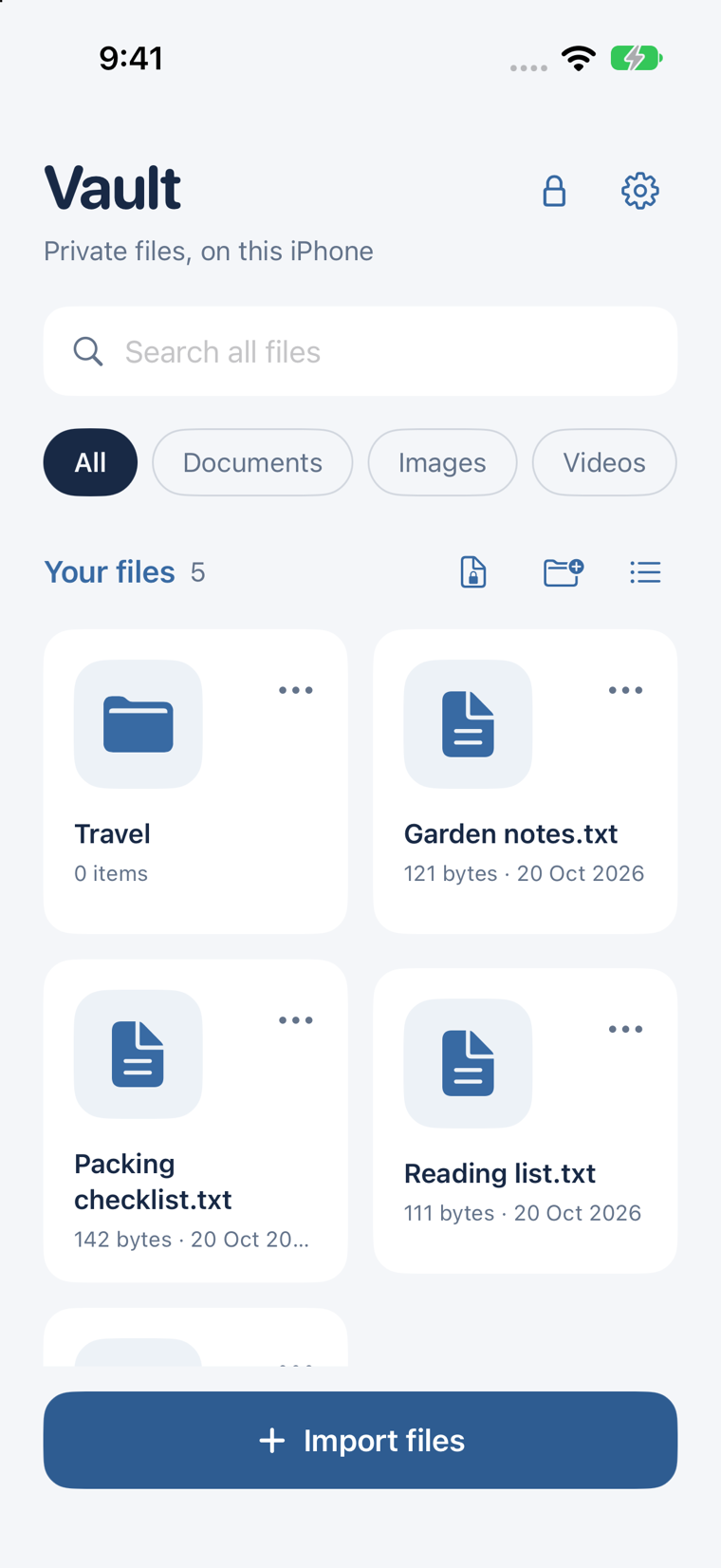
Vault is designed for regular documents, images and other files kept together in an encrypted local library. Version 1.0 is coming soon.
Import a copy
Choose Files or Photos. Import leaves the original at its source.
Choose optional authentication
Turn on Settings → Require authentication to open Vault if you want another system check. It starts off for a new vault.
Check the imported file
Open it before changing any source copy.
Create and check a recovery backup
Save the encrypted backup outside the phone and keep its code separately.
Before relying on any method
- Check for other copies in Mail, Downloads, Files, Photos or cloud storage.
- Test with a harmless file first.
- Verify that you can reopen the protected copy.
- Keep a recovery method you can reach if the phone is lost.
- Remember that export creates another ordinary copy unless the file or package is separately encrypted.